

Windows 11 26H2 not showing in Windows Update? Usually it is one of four things: your PC is not on version 24H2 or 25H2, a September update that Microsoft requires is missing, Microsoft has not offered the update to your PC yet, or your PC runs version 26H1, which cannot get 26H2. This guide helps you find out which one it is, see whether you can install KB5121794 by hand, and fix it when the install fails.
Last checked against Microsoft’s pages on October 21, 2026. Rollouts and known issues change, so read Step 4 before you force anything.
Why Windows 11 26H2 is not showing up: quick answer
- Your PC is on 24H2 or 25H2. Install all pending updates, restart, turn on Get the latest updates as soon as they’re available, then select Check for updates.
- It still does not appear. Microsoft is rolling 26H2 out in phases and may hold it back on PCs with a known compatibility problem. Waiting is normal.
- Your PC is on 26H1, 23H2 or Windows 10. KB5121794 will not work for you. Check the table in Step 1.
What Windows 11 26H2 and KB5121794 are
Windows 11 26H2, also called the Windows 11 2026 Update, became available on September 29, 2026. It comes as an enablement package, KB5121794. Versions 24H2, 25H2 and 26H2 share the same core system files, so the 26H2 features are already on your PC in an off state. The package switches them on. Microsoft says it needs a small download and one restart.
Do not expect a big visual change. Microsoft says some features that were off by default in 25H2 are on by default in 26H2. Installing 26H2 also resets the support period: 24 months for Home and Pro, 36 months for Enterprise and Education.
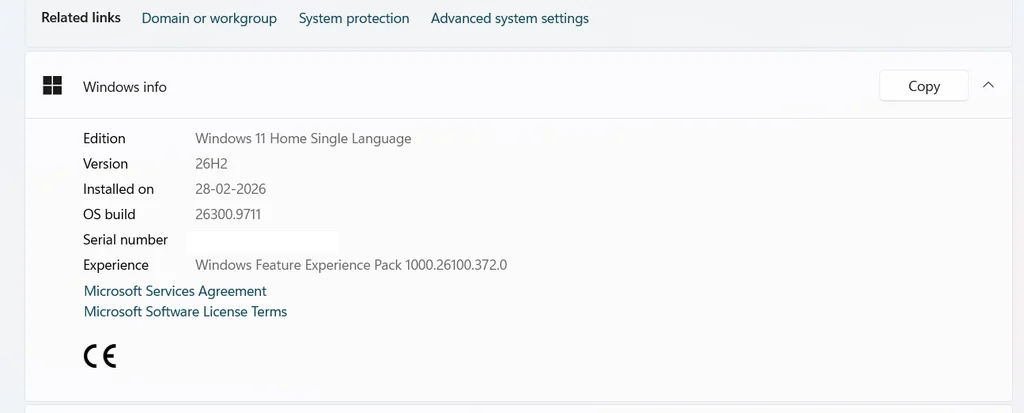
Step 1: Check which Windows 11 version you have
Press Windows key + R, type winver and press Enter. You can also open Settings > System > About and look under Windows specifications. Then match your build number to this table.
| What you have | Build starts with | Can you get 26H2 through Windows Update? |
|---|---|---|
| Windows 11 24H2 | 26100 | Yes, if your PC is eligible and the September update is installed |
| Windows 11 25H2 | 26200 | Yes, same conditions |
| Windows 11 26H2 | 26300 | You already have it |
| Windows 11 26H1 | 28000 | No. 26H1 uses a different core and is not offered 26H2 |
| Windows 11 23H2 or older | 22631 or lower | No. You need a full upgrade with the Windows 11 ISO first |
| Windows 10 | 19045 | No. You must move to Windows 11 first |
About 26H1: Microsoft’s own 26H1 page says it is only for new devices with select new chips, and that older PCs are not offered it through Windows Update. Reports based on Microsoft’s guidance say 26H1 PCs will not get 26H2 this year. If winver shows 26H1, your PC is not broken. There is nothing to fix.
About 24H2: Support for 24H2 Home and Pro ended on October 13, 2026. Read our guide on Windows 11 24H2 end of support if you are still on it.
Step 2: Install the required update and turn on early updates
Microsoft’s KB5121794 page lists a prerequisite: the September 22, 2026 update (KB5124010) or any later cumulative update. Windows Update normally installs it for you. If updates were paused or failing, it may be missing.
- Open Settings > Windows Update.
- Select Check for updates. Install everything it lists, then restart.
- Turn on Get the latest updates as soon as they’re available. Microsoft names this setting as the way to get 26H2 early.
- Select Check for updates again. When Windows 11, version 26H2 is available appears, select Download & install.
- Restart when asked.
To check the prerequisite, open Settings > Windows Update > Update history and look for KB5124010 or a newer cumulative update. Microsoft’s October 13, 2026 update is KB5127648.
Step 3: Check the usual blockers
- Updates are paused. On the Windows Update page, make sure the pause option is off.
- A restart is waiting. Restart once, then check again.
- Work or school PC. Your IT team controls updates. Admins using WSUS must set Product to Windows 11 and Classification to Upgrades. The update is named “Windows 11, version 26H2”.
- A safeguard hold. Microsoft says it may block 26H2 on PCs where it detects a known compatibility issue. Microsoft explains how to check in KB5006965.
- Windows 11 installed on unsupported hardware. If you got Windows 11 by bypassing the hardware checks, Windows Update may not offer feature updates. Several guides and forum users report this. I did not find a 26H2-specific statement from Microsoft, so treat it as likely, not confirmed.
Step 4: Read Microsoft’s known issues first
Microsoft’s Windows 11 26H2 release health page was last updated on October 19, 2026. At that time it listed these issues:
- Black screen or slow desktop after sign-in. Seen mostly on Azure Virtual Desktop hosts. Resolved by the October 13 update (KB5127648).
- Apps that need AC-3 audio decoding closing unexpectedly. Resolved by KB5127648.
- Remote Desktop error 0xC000000D for non-admin users. Mostly affects managed PCs with Administrator protection turned on. Status: mitigated.
- USB audio devices not starting or silent. Affects some USB Audio Class 1.0 devices (Device Manager shows Code 10). Status: mitigated, and Microsoft said it was still working on a fix.
- Domain trust problems on some domain-joined PCs. Resolved by KB5124010.
If you depend on a USB audio device or a Remote Desktop host, waiting a few weeks is the safer choice.
Step 5: Can you install KB5121794 manually?
On October 21, 2026, I searched the Microsoft Update Catalog for KB5121794 and it returned no results. The Windows Club also says Microsoft confirms the package is available only through Windows Update. Neowin and ElevenForum, however, published direct download links hosted on Microsoft servers, and Pureinfotech has a download guide. I could not verify those links, so a manual install is unconfirmed. If you still want to try, do it only on a PC running 24H2 or 25H2 that already has KB5124010 or later, and back up your important files first.
- Open Settings > System > About and read System type. It says either x64-based or ARM-based.
- Open the KB5121794 page on Microsoft Support and check whether it gives a download for your system type. If it does not, stop here and keep using Windows Update.
- If you get the file from Microsoft, it should be a tiny
.msufile, listed at about 174 KB by ElevenForum. Do not use a file from any other site. - Double-click the file and select Yes when Windows asks to install the update.
- Restart when prompted. Microsoft says a restart is required.
- Run
winver. It should now show Version 26H2.
Be careful: installing by hand skips the decision Windows Update makes about your PC. I could not find Microsoft saying whether a manual package respects a safeguard hold. If this is your work computer, check Step 4 and consider waiting for Windows Update to offer it. An installer of several hundred MB from another site is not the 26H2 package.
If the 26H2 install fails: fixes in the right order
First find the error code. Open Settings > Windows Update > Update history and look at the failed entry. Microsoft’s general Windows 11 upgrade error list covers these codes:
| Error code | What it usually points to |
|---|---|
| 0x800F0922 | The PC could not reach the update servers, or the System Reserved partition is short on space |
| 0xC1900101 | A driver or other software that is not compatible |
| 0x800706be | Reported on Microsoft Q&A for a failed 26H2 install. I found no official meaning, so use the general fixes below |
Try these in order. Stop when the update installs.
- Restart and try again. A pending restart blocks many installs.
- Run the troubleshooter. Go to Settings > System > Troubleshoot > Other troubleshooters, find Windows Update and select Run.
- Free up disk space. Open Settings > System > Storage > Temporary files and clear what is safe. Microsoft does not publish a space figure for this package, but the cumulative update before it needs room. A few free gigabytes is a sensible cushion. If your disk is stuck near 100%, see our 100% disk usage fixes.
- Remove interference. Disconnect any VPN and unneeded USB or external drives. A Microsoft Independent Advisor also suggested turning off third-party antivirus for a short time when a 26H2 install kept failing. Turn it back on afterward.
- Repair system files. Open Terminal as administrator and run the two commands listed under “Commands for fix 5” below the list. Then restart.
- Reset Windows Update components. Use this only if the steps above failed. Open Command Prompt as administrator and run the lines under “Commands for fix 6” below the list, one at a time. Then restart.
- Use Reinstall now. Go to Settings > System > Recovery > Fix problems using Windows Update and select Reinstall now. Microsoft community moderators say this does not touch your files, settings or apps.
- Last option: in-place upgrade. Download the Windows 11 ISO from Microsoft’s download page and run setup from inside Windows. Choose to keep files and apps. It is slow because the ISO is a full install image (about 7.9 GB for the 26H2 ISO, according to PCWelt).
Commands for fix 5 (run in order):
DISM /Online /Cleanup-Image /RestoreHealth
sfc /scannow
Commands for fix 6 (run one at a time):
net stop wuauserv
net stop cryptSvc
net stop bits
net stop msiserver
ren C:\Windows\SoftwareDistribution SoftwareDistribution.old
ren C:\Windows\System32\catroot2 catroot2.old
net start wuauserv
net start cryptSvc
net start bits
net start msiserver
Still stuck? Open the Get Help app, which Microsoft recommends for update problems. You can also report it in the Feedback Hub.
What’s new in Windows 11 26H2
Do not expect a big change on day one. Microsoft says versions 24H2, 25H2 and 26H2 share the same core, and many 26H2 features already arrived through monthly updates. Windows Latest tested the August preview and reported that the only visible change on its test PC was the build number. Microsoft also says some features that were off by default in 25H2 are on by default in 26H2.
This is the user-facing part of Microsoft’s feature list, as reported by Windows Latest, Pureinfotech, TechPowerUp and The Windows Club:
| Feature | What changes |
|---|---|
| Taskbar position | Move the Taskbar to the top, left, right or bottom. Setting: Settings > Personalization > Taskbar > Taskbar position |
| Taskbar size | A smaller Taskbar option. Setting: Settings > Personalization > Taskbar > Taskbar size. You cannot make the Taskbar larger than the default |
| Start menu | Small and Large sizes, and the option to hide the Pinned, Recent or All sections |
| Windows Search | Result previews, better handling of typos and partial app names, labels on each result type, an option to turn off web and Microsoft Store suggestions, and automatic indexing of frequently used folders |
| File Explorer | AI actions for images, Copilot summaries for OneDrive and SharePoint files (needs Microsoft 365 and a Copilot license), more archive formats, and a faster Home page |
| Agent in Settings | An AI assistant that finds and changes settings from plain-language requests |
| Task Manager | Tracking for NPU usage next to the CPU and GPU graphs |
| Accessibility | Magnifier gets finer zoom controls and screen tint options. Narrator gets a Braille Viewer |
| Security and recovery | Smart App Control can be turned on or off without a clean install. Windows Hello Enhanced Sign-in Security works with more external fingerprint readers. A point-in-time restore option can roll a PC back, including apps, settings and files |
Some items are aimed at businesses, such as Administrator protection (managed through Intune or Group Policy) and a built-in Sysmon that is off by default. Some AI features depend on your hardware, region or licenses, so you may not see all of them.
Try it: move the Taskbar
- Open Settings > Personalization > Taskbar.
- Select Taskbar position and pick top, left, right or bottom.
- For a smaller bar, open Taskbar size and choose the smaller option.
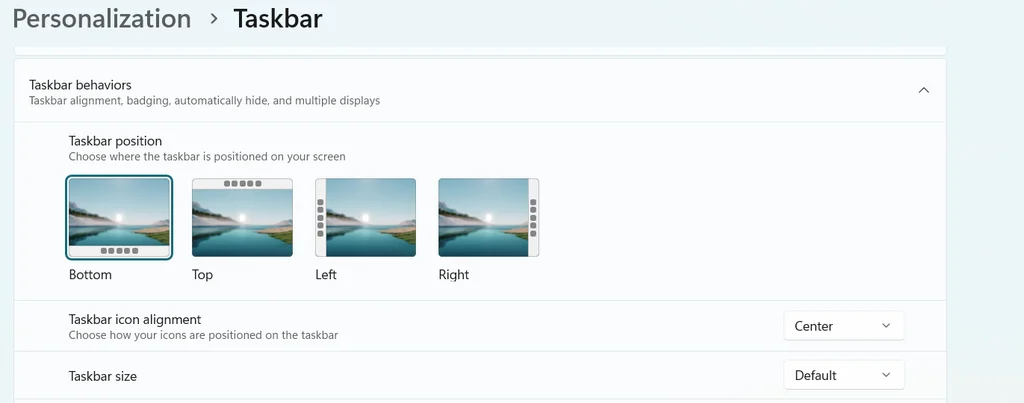
Two limits come from Pureinfotech’s hands-on report, written during the August preview: you cannot make the Taskbar bigger, and once you pick the smaller Taskbar size, the Show smaller app icons option no longer works on its own. If you do not see these settings yet, the feature may still be rolling out to your PC. Check on your own PC, since the report predates the final release.
Common mistakes that waste time
- Giving up after one “Check for updates”. The rollout is phased. Two eligible PCs can get the offer on different days.
- Running the .msu on the wrong version. The package is only for 24H2 and 25H2. It does nothing for Windows 10, 23H2 or 26H1.
- Skipping the September update. Without KB5124010 or later, the package will not install.
- Downloading from random sites. The real package is under 1 MB. Only trust a file that comes from Microsoft.
- Editing the registry to force the offer. It can break Windows Update and does not remove a safeguard hold.
- Not checking the result. Run
winver. The desktop looks the same after 26H2, so you cannot tell by sight. - Skipping a backup. The package is small, but a failed update can still go wrong. Copy your key files first.
Practical examples
Example 1: Home laptop on 25H2, nothing shows. Winver says 26200. Install all updates, restart, turn on the early updates switch, check again. If it still does not appear, look at the release health page and wait a few days.
Example 2: New laptop that shows 26H1. Winver says 28000. No fix exists, and none is needed. The PC keeps getting security updates.
Example 3: Office PC on 24H2. Windows Update says you are up to date, but IT manages updates. Ask your IT team. Do not install the package by hand on a managed device.
Example 4: The update downloads, then fails and rolls back. Open Update history and note the code. Run the troubleshooter, free space, repair files with DISM and sfc, then try Reinstall now.
Frequently asked questions
Is KB5121794 a full Windows upgrade?
No. It is a small enablement package that switches on features already present in 24H2 and 25H2. It is not a reinstall of Windows. Back up your files anyway.
How long does the 26H2 update take?
Microsoft says it needs a small download and a single restart. Real times vary by PC and by how many other updates are waiting.
Do I have to install 26H2 now?
Microsoft recommends updating eligible devices. If you use USB audio devices or Remote Desktop hosts, check the known issues in Step 4 first.
Can Windows 10 get KB5121794?
No. You must be on Windows 11 24H2 or 25H2. Windows 10 PCs need to move to Windows 11 first. Our guide on Windows 10 ESU explains what is changing for Windows 10 in October 2026.
Why does my friend have 26H2 and I do not?
Microsoft uses a controlled rollout and may place safeguard holds on PCs with known compatibility problems. The offer reaches different PCs at different times.
Sources
- Microsoft Support: KB5121794 feature update to Windows 11, version 26H2
- Windows Experience Blog: How to get the Windows 11 2026 Update
- Microsoft Learn: Windows 11, version 26H2 known issues and notifications
- Pureinfotech: Windows 11 26H1 vs 26H2
- Microsoft Q&A: I can’t update Windows 11 26H2
- The Windows Club: Windows 11 26H2 introduces new features
- Pureinfotech: Taskbar changes in Windows 11 26H2
- Windows Latest: What is actually new in Windows 11 26H2
- Windows IT Pro Blog: An IT pro’s guide to Windows 11, version 26H2
This guide is based on Microsoft’s documentation and the sources above. I did not test these steps on a PC for this article.
Pingback: KB5127648 (Oct 2026): Fixes, Known Issues & How to Fix Them