

100% disk usage in Windows 11 means your drive is busy all the time, so apps open slowly, the mouse lags and the laptop feels frozen. It is not a fault in itself. Something is reading or writing to the drive non-stop, or the drive is too slow or failing. This guide shows how to find the cause in Task Manager first and then fix it, starting with the safest steps.
First: wait 15 minutes and check Task Manager
Right after you switch on the PC or install an update, Windows indexes files, scans for malware and finishes updates. Seeing 100% disk usage in Windows 11 for the first 10 to 15 minutes is normal. If it stays at 100% after that, find what is using it:
- Press Ctrl + Shift + Esc to open Task Manager.
- On the Processes page, click the Disk column header so the busiest app is at the top.
- Note the name of the top process and use the table below.
- Open the Performance page and click your disk. It shows whether it is an SSD or HDD.
For more detail, press Windows + R, type resmon and open the Disk tab in Resource Monitor. It shows exactly which files each process is reading.
| Top process in Task Manager | What it is | Fix |
|---|---|---|
| Antimalware Service Executable | Microsoft Defender scanning files | Let the scan finish, or see Fix 4 |
| Service Host: Windows Update / Delivery Optimization | Downloading or installing updates | Fix 3 |
| Microsoft OneDrive | Syncing files | Fix 5 |
| Microsoft Windows Search Indexer | Indexing files for search | Fix 6 |
| Service Host: SysMain | Preloading apps into memory | Fix 7 |
| System, with Memory also near 100% | Windows using the disk as extra memory (paging file) | Fix 8 |
| A browser or game launcher | Downloads, cache or updates | Close it or pause its downloads |
How to fix 100% disk usage in Windows 11
Fix 1: Restart the PC properly
Use Start → Power → Restart, not Shut down. Restart clears stuck processes fully, while Shut down with Fast Startup keeps part of the old session.
Fix 2: Check free space on the C drive
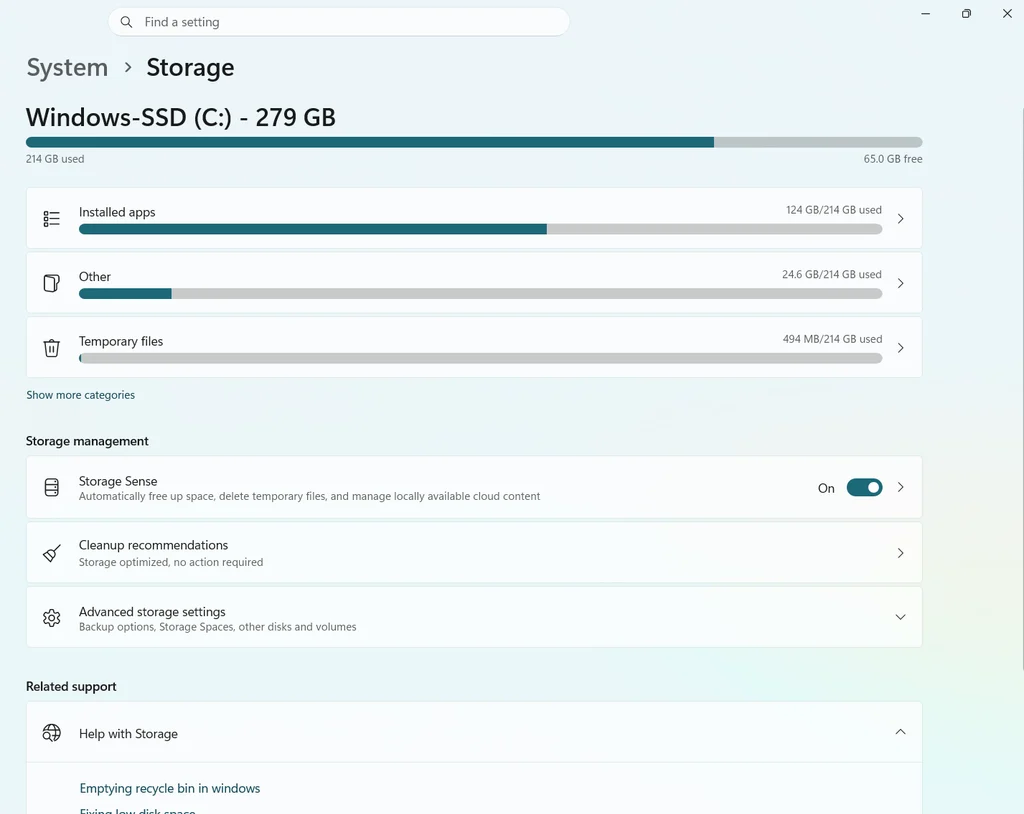
When the C drive is almost full, Windows struggles to write temporary files and updates. Open Settings → System → Storage. If less than about 10% is free, clear space first. See our guide on how to free up C drive space in Windows 11.
Fix 3: Let updates finish, then limit update sharing
- Go to Settings → Windows Update and let pending updates install, then restart.
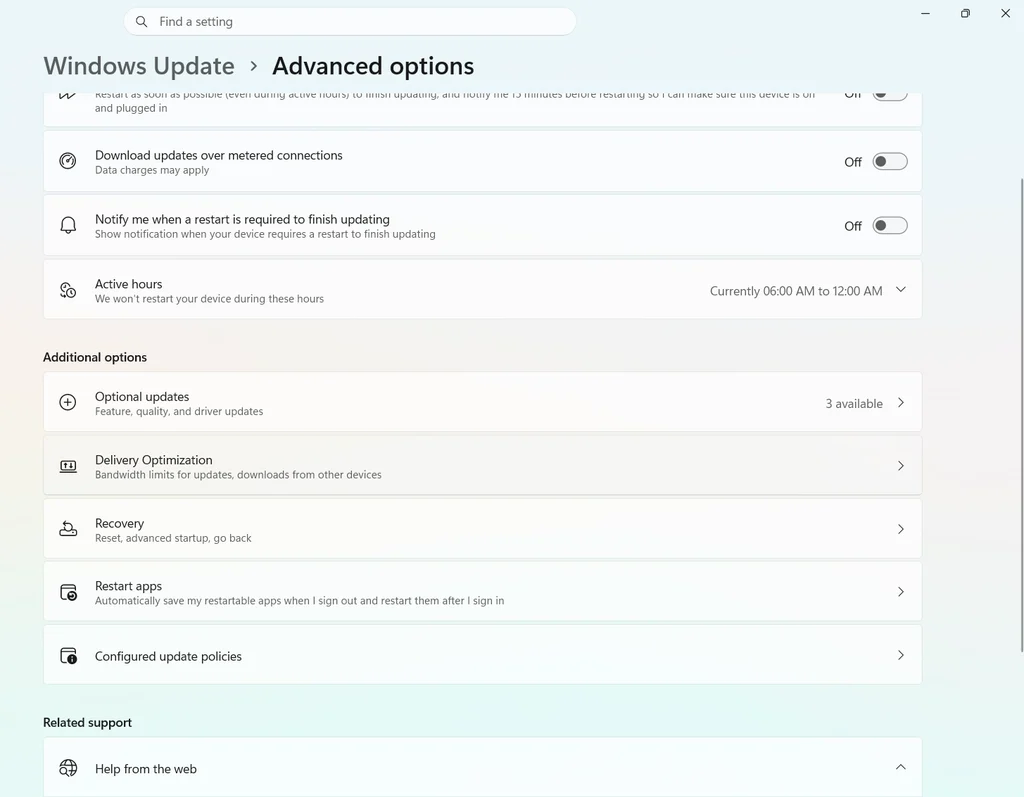
- Open Advanced options → Delivery Optimization.
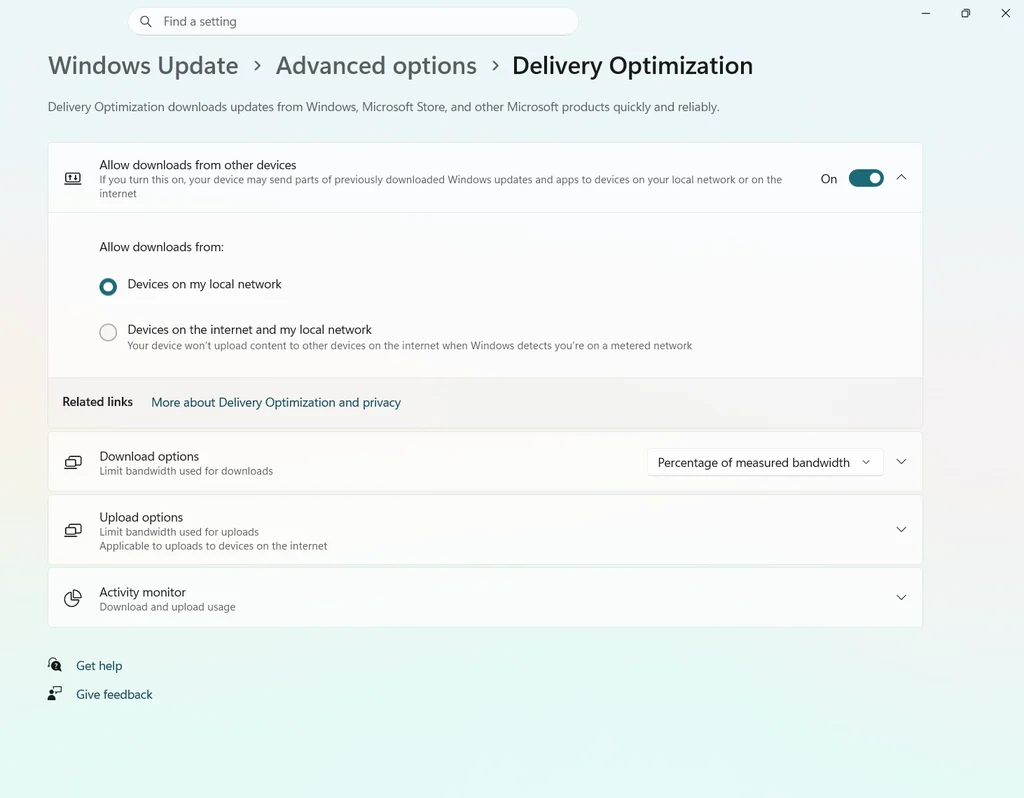
3. Turn off Allow downloads from other devices if you don’t need it. This stops your PC sharing update files with other PCs.
Fix 4: Run a malware scan
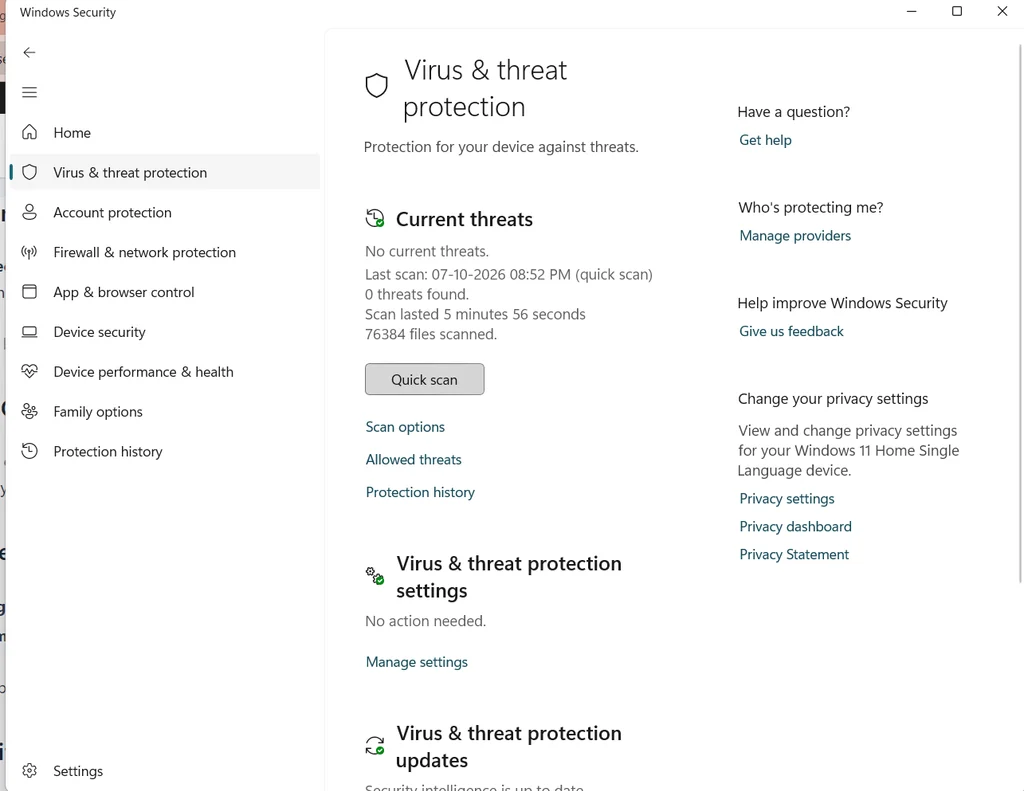
Open Windows Security → Virus & threat protection → Quick scan. Malware can keep a disk busy. If Defender itself is the busy process, let the scan finish once; it usually calms down afterwards. Do not turn off Defender permanently.
Fix 5: Pause OneDrive while you work
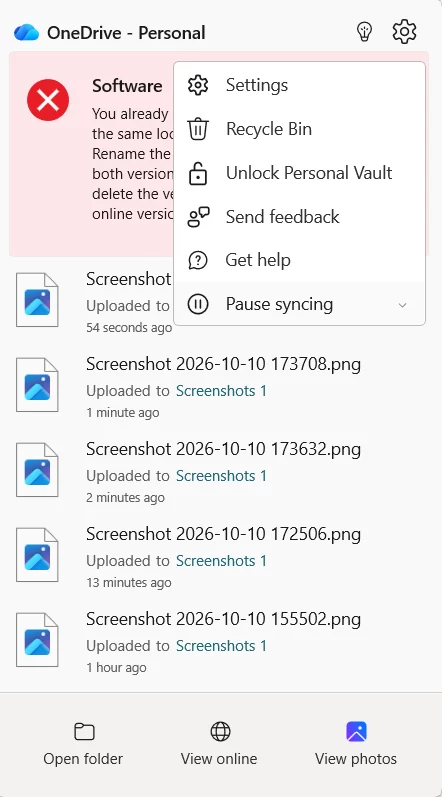
Click the OneDrive cloud icon near the clock → Settings (gear) → Pause syncing and choose 2, 8 or 24 hours. Large photo or video folders can keep the disk busy for hours on the first sync.
Fix 6: Reduce search indexing
- Open Settings → Privacy & security → Search.
- Under Find my files, choose Classic instead of Enhanced. Classic indexes only your libraries and desktop, not the whole PC.
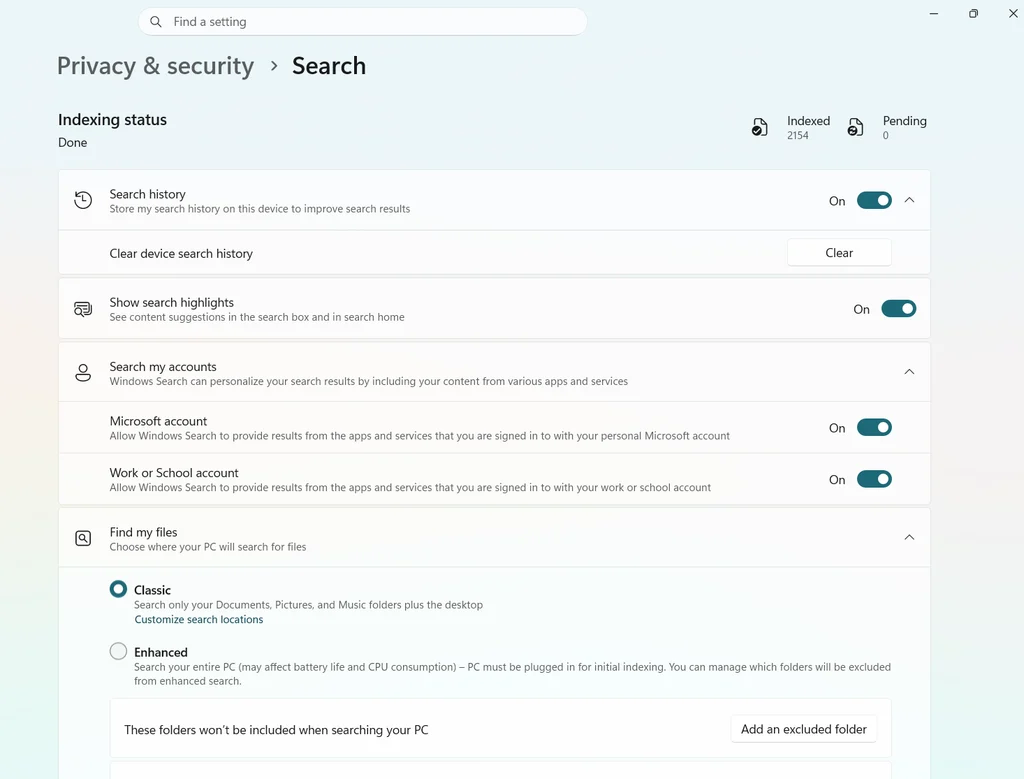
Search still works, but files outside your user folders are found more slowly.
Fix 7: Test with SysMain stopped
SysMain preloads apps you use often. On some PCs with slow hard drives it adds to disk load. Test it like this:
- Press Windows + R, type
services.msc, press Enter. - Right-click SysMain → Stop.
- Watch Task Manager for 10 minutes. If disk use does not drop, right-click SysMain → Start again.
Only set it to Disabled if stopping it clearly helped. On SSDs it rarely matters.
Fix 8: Add RAM if memory is always full
If the Memory column in Task Manager is also near 100%, Windows moves data to the disk (the paging file), and the disk becomes the bottleneck. Close unused apps and browser tabs. If this happens every day with 8GB or less, adding RAM is the real fix. Our Chrome memory guide helps if the browser is the main user.
Fix 9: Check the drive for errors and health
Open Command Prompt as administrator and run an online scan (no restart needed). The options are explained in Microsoft’s chkdsk documentation:
chkdsk C: /scanTo check drive health, open PowerShell and run Microsoft’s Get-PhysicalDisk command:
Get-PhysicalDisk | Select-Object FriendlyName, MediaType, HealthStatusHealthy is good. Warning or Unhealthy means back up your files now and plan to replace the drive. On NVMe SSDs, Windows 11 can also show estimated drive health under Settings → System → Storage → Advanced storage settings → Disks & volumes → Properties.
Fix 10: Upgrade from a hard disk (HDD) to an SSD
If Task Manager says your disk is an HDD, this is the most common reason for constant 100% disk usage in Windows 11. Windows 11 is designed for faster drives, and a hard disk reaches 100% with normal background work. Moving to an SSD is the fix that makes the biggest difference. Check whether your laptop has an M.2 slot or a 2.5-inch bay before buying.
Practical examples
- Old office laptop with a 1TB HDD, 100% disk all day: Fixes 3, 5 and 6 help a little, but the real fix is an SSD (Fix 10).
- New laptop at 100% disk for 20 minutes after every startup: usually Windows Update or Defender. Let it finish once with the laptop plugged in.
- 100% disk only when Chrome is open with 30 tabs on 8GB RAM: memory is full and Windows is paging. Close tabs or add RAM (Fix 8).
- Disk at 100% and files take very long to copy, with clicking sounds: the hard disk may be failing. Back up now and run Fix 9.
Troubleshooting 100% disk usage in Windows 11
Task Manager shows 100% but no process is using much
Open Resource Monitor (resmon) → Disk tab and sort by Response Time. Very high response times on an HDD point to a slow or failing drive rather than one app.
chkdsk asks to run at next restart
If you used /f or /r on the C drive, Windows can’t check it while it is in use and offers to do it at restart. Type Y and restart. The /r option reads every sector and can take hours on a large hard disk.
Disk usage went up after a Windows update
Give the PC one restart and an hour plugged in. Windows often optimises apps and rebuilds the search index after a big update.
Common mistakes
- Turning off Windows Defender to lower disk use. It leaves the PC unprotected.
- Disabling every service you read about online. Change one thing at a time and undo it if it does not help.
- Deleting the paging file. It can make apps crash when memory runs out.
- Ignoring a failing drive. If health shows Warning, back up before trying other fixes.
- Judging in the first 10 minutes after startup. High disk use then is normal.
Related: How to fix a slow laptop on Windows 11, free up C drive space and Chrome using too much memory.
FAQ
Is 100% disk usage bad?
Short periods are normal, for example after startup or during updates. Constant 100% disk usage makes the PC slow and should be fixed.
Why is my disk at 100% when nothing is running?
Background tasks such as Windows Update, Defender scans, OneDrive sync and search indexing use the disk. Check the Disk column in Task Manager to find which one.
Can an SSD fix 100% disk usage in Windows 11?
On PCs with a hard disk (HDD), yes. It is the most effective fix, because hard disks are much slower than SSDs.
Should I disable SysMain?
Only if stopping it clearly lowers disk use on your PC. On SSDs it rarely makes a difference.
How do I check if my hard drive is failing?
Run Get-PhysicalDisk in PowerShell and check HealthStatus, and run chkdsk C: /scan as administrator. Back up files if you see Warning or Unhealthy.
Does more RAM reduce disk usage?
Yes, if your memory is often full. Windows then uses the disk less as extra memory.