

Short answer: A Rank Math sitemap that shows a 404 page is usually caused by one of four things: a stale sitemap cache, permalinks that need refreshing, a caching plugin or CDN that stored the sitemap, or missing rewrite rules on the server. Work through the steps below in order and test /sitemap_index.xml after each one.
Checked against Rank Math’s own documentation on 19 October 2026. Menu names in WP Super Cache and Cloudflare change over time, so if a label looks slightly different on your screen, look for the closest match.
Is your sitemap really returning a 404?
Open your sitemap in a private (incognito) window. The default Rank Math address is:
https://yourdomain.com/sitemap_index.xml
Use incognito on purpose. If you are logged in to WordPress, your browser may show a different result than Google or a visitor would see. You can find the exact sitemap address under Rank Math SEO → Sitemap Settings.
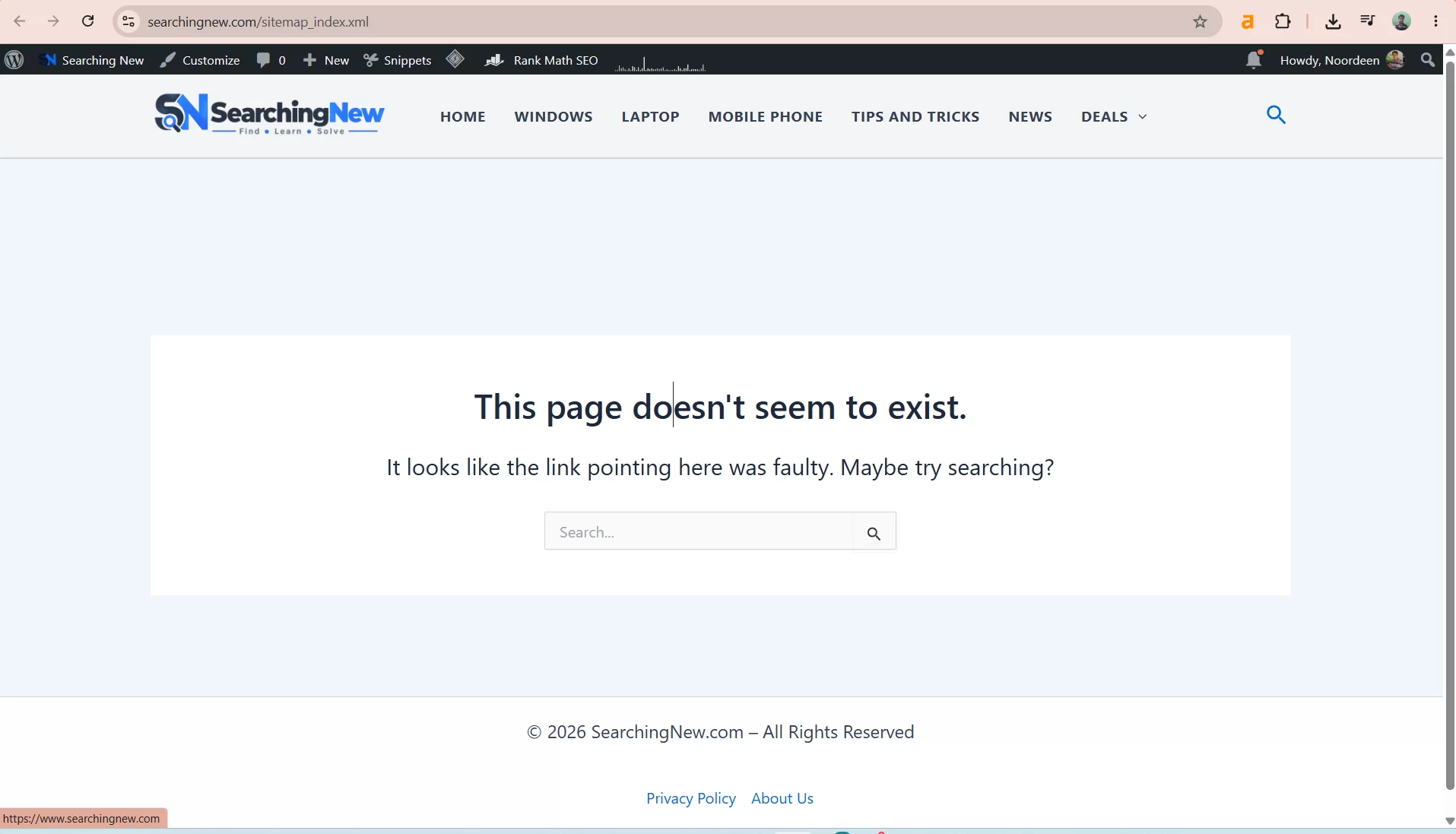
If you see your theme’s “page not found” screen like the one above, WordPress did not hand the request to Rank Math. The steps below fix that.
Common causes at a glance
- Old sitemap cache inside Rank Math.
- Permalink rules that were not refreshed after a migration, plugin change or permalink change.
- A caching plugin or CDN (WP Super Cache, Cloudflare and similar) that stored or blocked the sitemap.
- Missing Apache or Nginx rewrite rules. Rank Math lists this as a server-level cause.
- Pages set to noindex. Rank Math says noindex content is left out of the sitemap, which can lead to an empty or missing sitemap.
Step 1: Flush the Rank Math sitemap cache
- Go to Rank Math SEO → Sitemap Settings.
- Change the Links Per Sitemap number (for example, from 200 to 201).
- Click Save Changes at the bottom.
Rank Math’s guide uses this change to force the sitemap to rebuild. You can change the number back later.
Step 2: Re-save your permalinks
- Go to Settings → Permalinks.
- Do not change anything. Just click Save Changes.
This makes WordPress rebuild its URL rules. Test your sitemap in incognito. If it loads, you are done. If not, continue.
Step 3: Stop WP Super Cache from caching your sitemap
Caching plugins are meant to speed up pages, but a sitemap should always be fresh. Rank Math recommends excluding sitemap files from caching.
- Go to Settings → WP Super Cache → Advanced.
- Scroll to Rejected URL Strings.
- Add a new line with the word
sitemap. Keep the lines that are already there. - Click Save Strings.
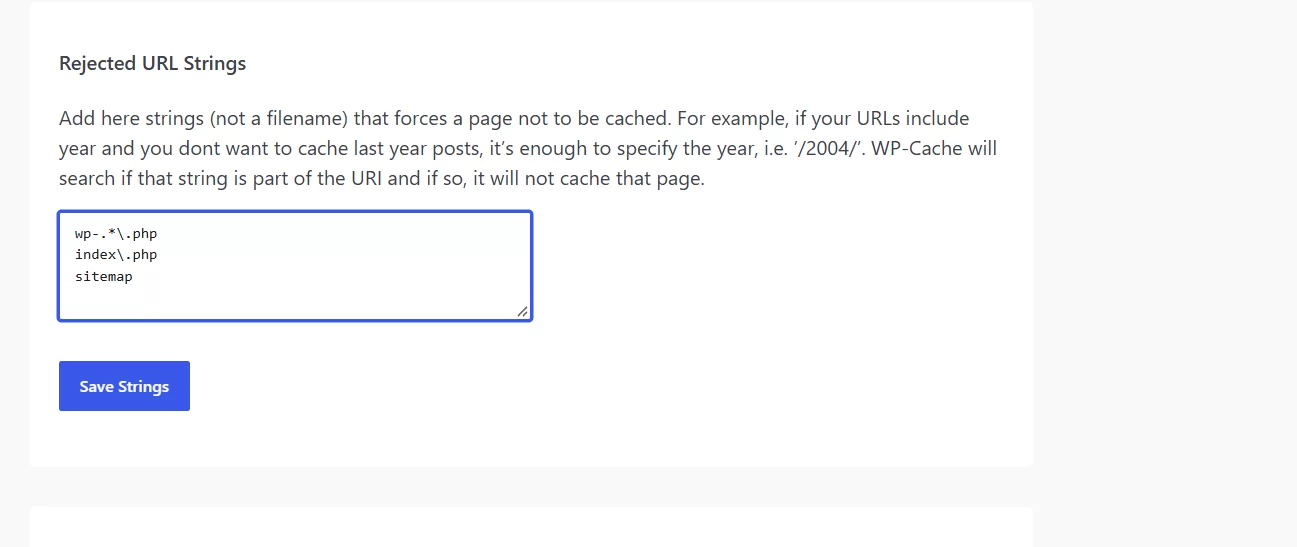
WP Super Cache describes this box as strings that stop a page from being cached if the string appears anywhere in the URL. So the word sitemap covers sitemap_index.xml, post-sitemap.xml and similar files.
Rank Math’s own guide suggests longer patterns instead. Use them if the short word does not work for you:
sitemap?\.xml?
[a-z0-9_\-]*sitemap[a-z0-9_\-]*.(\xml|xsl)?
([az0-9_\-]*?)sitemap([a-z0-9_\-]*)?.xml
After saving, clear the existing cache from the WP Super Cache settings page, then test again in incognito.
Step 4: Tell Cloudflare not to cache .xml files
Rank Math notes that Cloudflare does not normally cache sitemaps. This step is only needed if you suspect Cloudflare is serving an old or wrong copy, or if you have other caching rules that may catch XML files.
Rank Math’s guide uses a Page Rule set to Cache Level: Bypass. Cloudflare’s newer way to do the same job is a Cache Rule, which is what is shown here:
- Log in to Cloudflare and select your website.
- Open the Cache Rules section (usually under Caching → Cache Rules or Rules) and create a new rule.
- Give it a clear name, for example Bypass XML Sitemaps.
- Choose Custom filter expression.
- Set Field to URI Path, Operator to ends with, and Value to
.xml. - Under Cache eligibility, choose Bypass cache.
- Click Deploy.
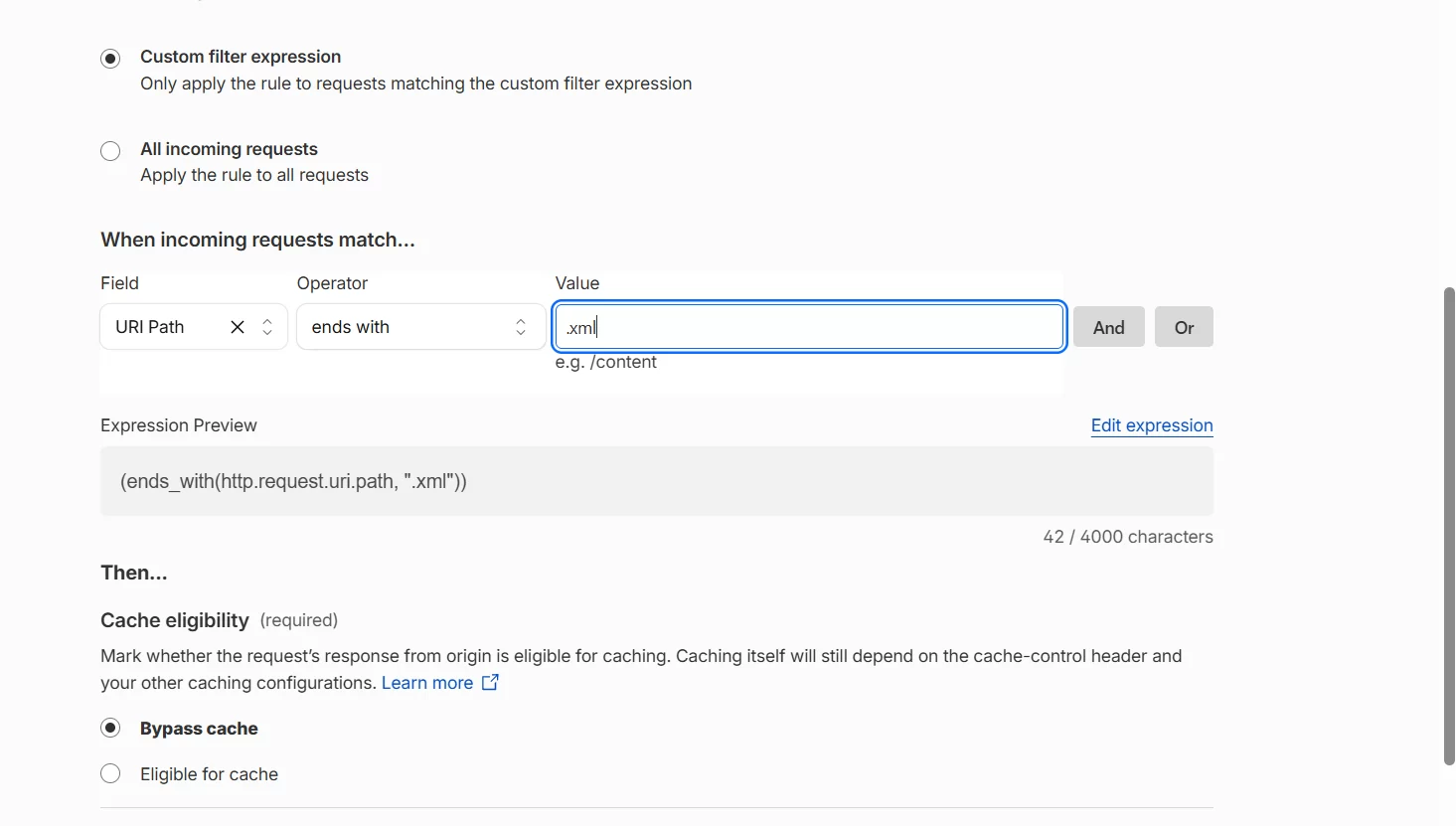
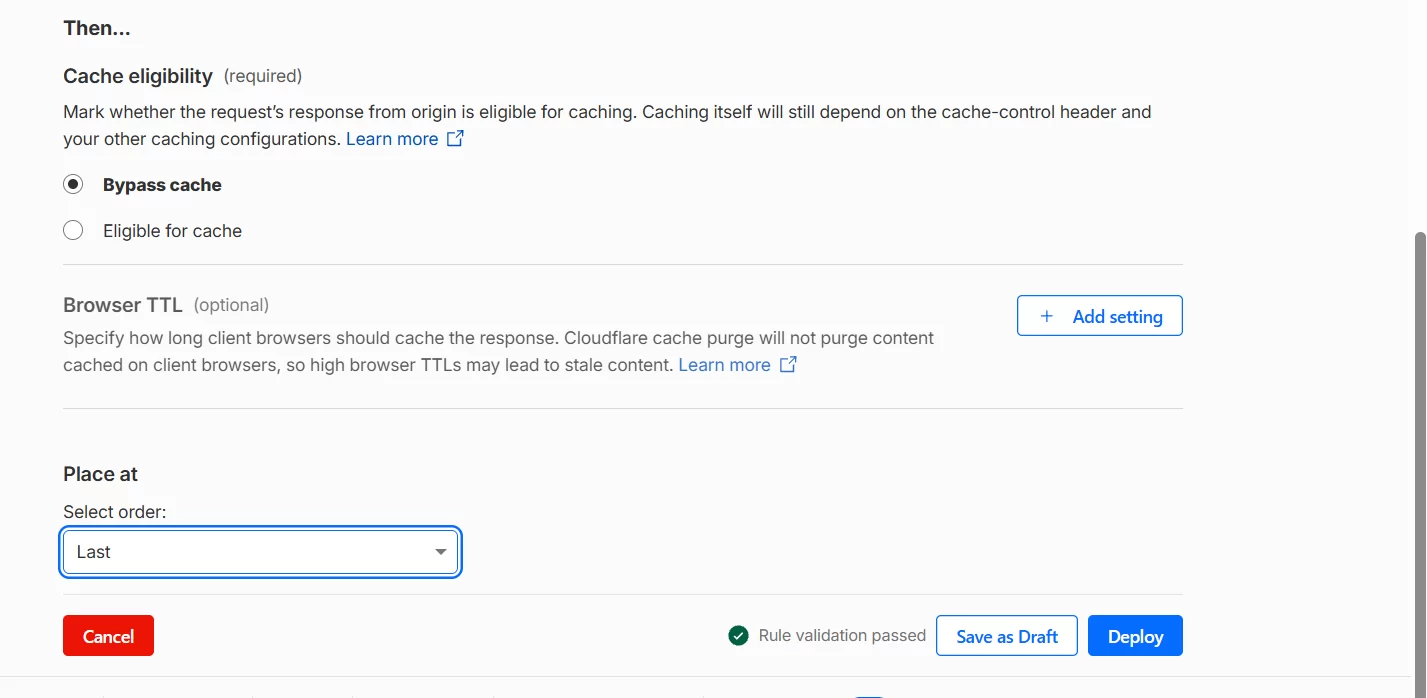
Afterwards, purge Cloudflare’s cache so old copies are removed. Cloudflare offers purge by URL, by host, by prefix and “purge everything”. Purging only your sitemap URL is the most careful choice.
Note: this rule matches only paths that end in .xml. Rank Math’s .xsl stylesheet file is not matched, which is normally fine.
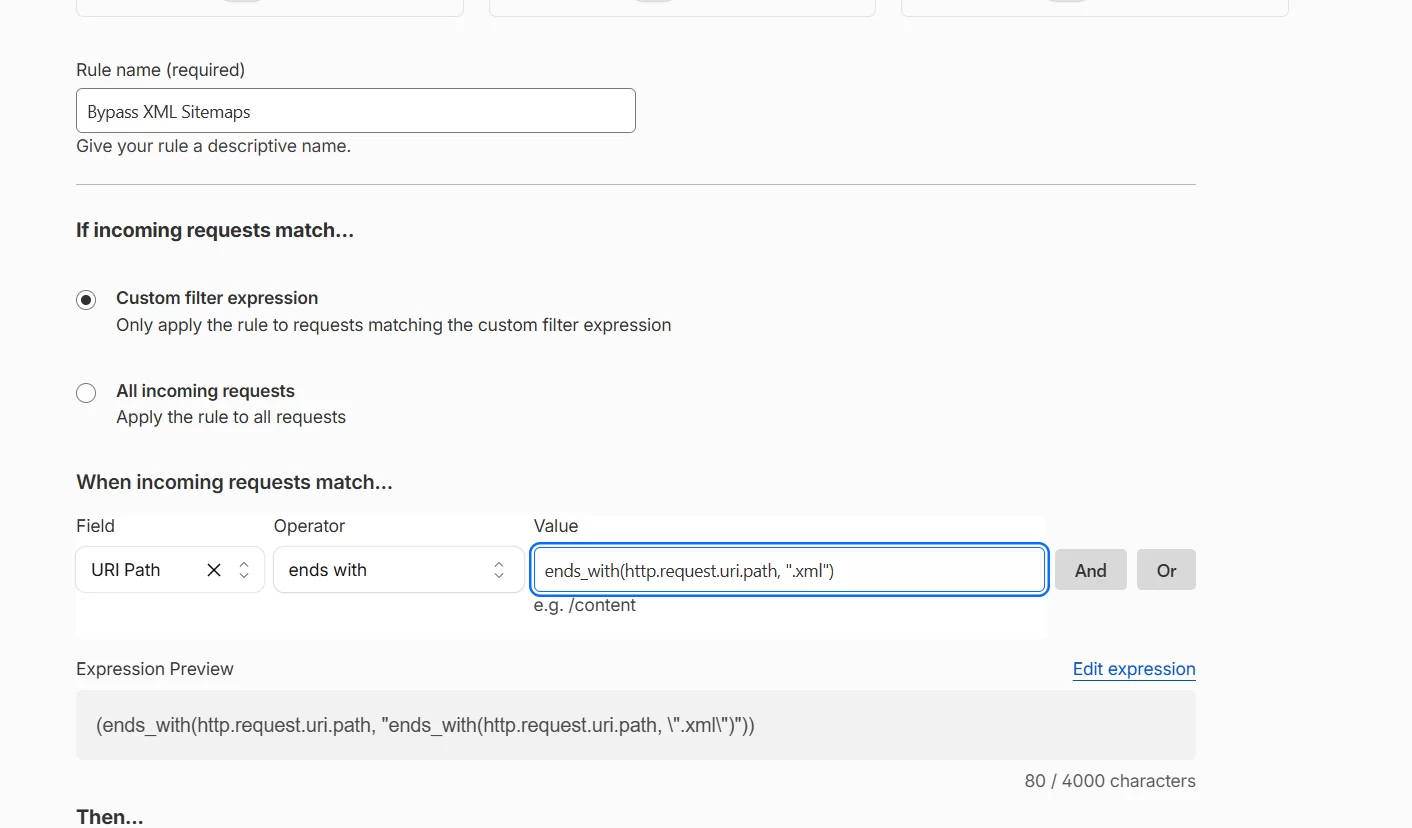
Mistake to avoid: pasting the whole expression into the Value box
The Value box expects only the text to match, such as .xml. If you paste a full expression like ends_with(http.request.uri.path, ".xml") into it, Cloudflare wraps your text inside another expression and the rule becomes wrong, as shown below.
Step 5: Check the server rewrite rules (Apache or Nginx)
If the sitemap still returns 404, the server may not be sending sitemap requests to WordPress. Rank Math says it may show a notice in Sitemap Settings when Nginx blocks sitemap creation.
Apache (.htaccess). Back up your .htaccess file first, then add this at the end:
# START of Rank Math Sitemap Rewrite Rules
RewriteEngine On
RewriteBase /
RewriteRule ^sitemap_index.xml$ /index.php?sitemap=1 [L]
RewriteRule ^([^/]+?)-sitemap([0-9]+)?.xml$ /index.php?sitemap=$1&sitemap_n=$2 [L]
RewriteRule ^([a-z]+)?-?sitemap.xsl$ /index.php?xsl=$1 [L]
# END of Rank Math Sitemap Rewrite Rules
Nginx. Add these rules to the server configuration. If you are not sure how, ask your host:
# START Nginx Rewrites for Rank Math Sitemaps
rewrite ^/sitemap_index.xml$ /index.php?sitemap=1 last;
rewrite ^/([^/]+?)-sitemap([0-9]+)?.xml$ /index.php?sitemap=$1&sitemap_n=$2 last;
rewrite ^/([a-z]+)?-sitemap\.xsl$ /index.php?xsl=$1 last;
# END Nginx Rewrites for Rank Math Sitemaps
Rules copied from Rank Math’s sitemap 404 guide. Check that guide for any newer version before you paste them.
Step 6: Check that your content is set to index
Open a post or page and go to Rank Math SEO → Advanced in the editor. Make sure the robots setting is Index, then click Update. Rank Math says content set to noindex is excluded from the sitemap.
Last resort: turn off Rank Math’s sitemap caching
If nothing above works, Rank Math documents a filter that switches off its built-in sitemap cache. This needs code, so use a code snippets plugin or a child theme and keep a backup:
add_filter( 'rank_math/sitemap/enable_caching', '__return_false' );How to confirm it is fixed
- Open
/sitemap_index.xmlin an incognito window. You should see a list of sitemap links (post, page, category and so on), not a 404 page. - Click one child sitemap, such as
post-sitemap.xml, to check it loads too. - In Google Search Console, go to Sitemaps, enter
sitemap_index.xmland submit it.
Google may take some time to read the sitemap. A “Couldn’t fetch” or pending status right after submitting does not always mean a problem, so check again after a day or two before changing settings again.
Troubleshooting table
| What you see | Likely cause | What to try |
|---|---|---|
| 404 only when logged out | Page cache or CDN | Steps 3 and 4, then purge caches |
| 404 for every .xml file | Missing rewrite rules | Steps 2 and 5 |
| Main sitemap loads, one child sitemap is 404 | Stale sitemap cache or no indexable content of that type | Steps 1 and 6 |
| Sitemap looks old after publishing | Cached copy | Steps 3 and 4 |
| Fixed, then breaks again | Rule order, or old copies not purged | Re-check the rule order and the Rejected URL Strings box |
Common mistakes
- Testing while logged in. Always use incognito, or you may not see what visitors see.
- Replacing the default WP Super Cache lines. Add
sitemapon a new line. Do not delete the existing entries. - Forgetting to purge. A new rule does not remove copies that were already cached.
- Using the wrong sitemap address. Rank Math uses
sitemap_index.xml. Addresses like/sitemap.xmlmay not exist, depending on your setup. - Running two sitemaps. If another SEO plugin or your theme also makes a sitemap, they can clash. Keep one active.
- Editing server files without a backup. Save a copy of
.htaccessbefore any change.
Frequently asked questions
Why does my Rank Math sitemap show 404 after I changed permalinks?
WordPress needs to rebuild its rewrite rules. Save the permalinks page again (Step 2) and flush the sitemap cache (Step 1).
Do I need to exclude the sitemap in both WP Super Cache and Cloudflare?
Not always. WP Super Cache is the first place to check. Rank Math says Cloudflare does not normally cache sitemaps, so do the Cloudflare step only if the problem remains.
Is a 404 sitemap bad for SEO?
A sitemap helps Google find your pages, but it is not the only way. Google can still find pages through links. Fix the 404 anyway so you can monitor indexing in Search Console.
Can I use this fix for Yoast or other sitemap plugins?
The ideas (refresh permalinks, exclude sitemaps from caching, check rewrite rules) are similar. The exact addresses and settings are different, so check that plugin’s own guide.
Sources
- Rank Math: Why the sitemap_index.xml is throwing a 404 error
- Rank Math: How to exclude sitemaps from caching
- Cloudflare Docs: Cache Rules