

Shortcut Keys Used in Canva – Complete List for Faster Designing (2026)
Introduction
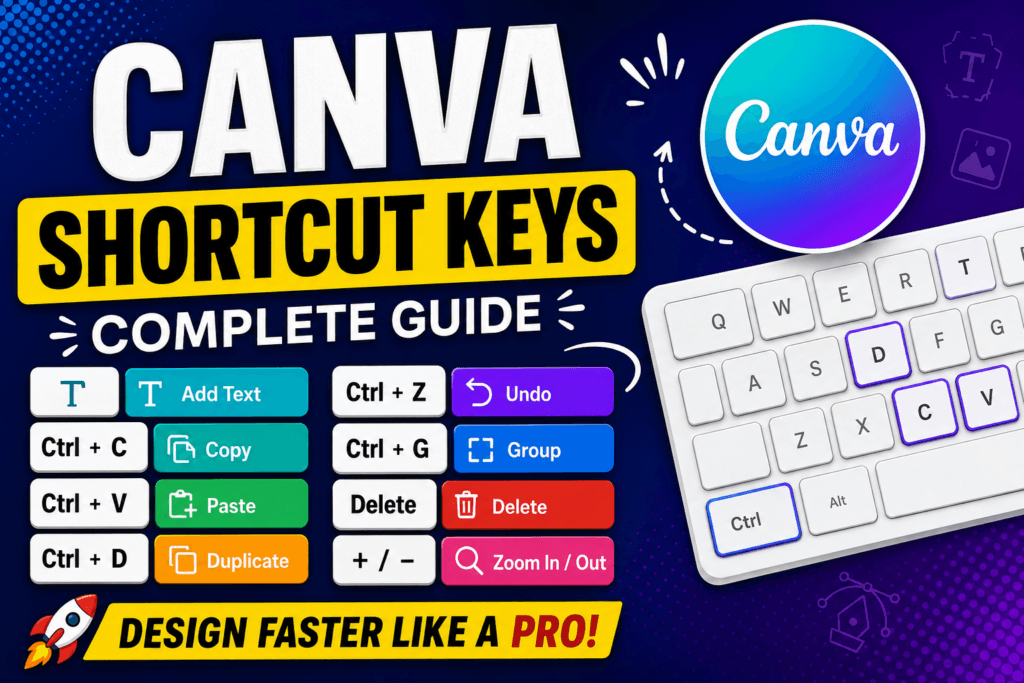
Shortcut key used in Canva can help you design faster and save time while creating graphics, thumbnails, presentations, and social media posts. If you regularly use Canva, learning Canva keyboard shortcuts will improve productivity and make designing much easier.
In this article, we will share the best Canva shortcut keys that help you design faster and work like a pro.
Why Use Canva Shortcut Keys?
Using keyboard shortcuts in Canva helps you:
- Save time while designing
- Work faster and more efficiently
- Improve editing speed
- Reduce mouse usage
- Increase productivity
If you use Canva daily, learning shortcuts is a must.
Also Read: Computer Shortcut Keys — Powerful Shortcuts Every Beginner Must Know
Most Shortcut key used in Canva
| Shortcut Key | Function |
|---|---|
| T | Add a text box |
| R | Add rectangle shape |
| C | Add circle shape |
| L | Add line |
| Ctrl + C | Copy selected element |
| Ctrl + V | Paste copied element |
| Ctrl + D | Duplicate selected item |
| Delete / Backspace | Delete selected item |
| Ctrl + Z | Undo action |
| Ctrl + Shift + Z | Redo action |
| Ctrl + A | Select all elements |
| Ctrl + G | Group elements |
| Ctrl + Shift + G | Ungroup elements |
| Arrow Keys | Move element slightly |
| Shift + Arrow Keys | Move element faster |
| Ctrl + ] | Bring forward |
| Ctrl + [ | Send backward |
| Shift + Ctrl + ] | Bring to front |
| Shift + Ctrl + [ | Send to back |
| Ctrl + S | Save design |
| + / – | Zoom in or out |
| Ctrl + Scroll Mouse | Zoom design |
Canva Text Formatting Shortcuts
Here are some useful text editing shortcuts in Canva:
| Shortcut Key | Function |
|---|---|
| Ctrl + B | Bold text |
| Ctrl + I | Italic text |
| Ctrl + U | Underline text |
| Ctrl + Shift + K | Uppercase text |
| Ctrl + C | Copy text |
| Ctrl + V | Paste text |
Canva Presentation Shortcut Keys
If you use Canva for presentations, these shortcuts will help:
| Shortcut Key | Function |
|---|---|
| F | Full screen mode |
| Esc | Exit full screen |
| Arrow Keys | Move between slides |
Tips to Work Faster in Canva
- Memorize commonly used shortcuts.
- Use templates to save time.
- Duplicate elements instead of redesigning.
- Use keyboard navigation for quick editing.
- Practice daily for faster workflow.
Advanced Canva Shortcut Tips
If you want to become faster in Canva, try using keyboard shortcuts daily instead of relying only on the mouse. Professional Canva designers use shortcuts to complete projects quickly and improve workflow.
You can also combine shortcuts while editing designs. For example, use Ctrl + D to duplicate an object and Ctrl + G to group elements together. This makes design editing much faster.
Another useful tip is to practice text formatting shortcuts like Ctrl + B for bold and Ctrl + U for underline. These small tricks can save a lot of time when working on large Canva projects.
By mastering shortcut keys used in Canva, you can create professional-looking graphics more efficiently and improve your overall design speed.
Conclusion
Learning Canva shortcut keys is one of the easiest ways to speed up your design work. Whether you are creating YouTube thumbnails, Instagram posts, presentations, or blog graphics, these shortcuts will make your workflow much faster.
Start practicing these Canva keyboard shortcuts today and become more productive in Canva!
Download: Canva Shortcut Keys PDF
Frequently Asked Questions (FAQ)
What is the shortcut to add text in Canva?
Press T to quickly add a text box in Canva.
How to duplicate in Canva?
Use Ctrl + D to duplicate any selected element.
What is the undo shortcut in Canva?
Press Ctrl + Z to undo your last action.
How to group elements in Canva?
Press Ctrl + G to group selected elements together.
Final Thoughts
Using the shortcut key used in Canva can completely improve your design speed and productivity. Instead of spending extra time clicking menus, keyboard shortcuts help you finish projects faster. Whether you are a beginner or professional designer, practicing Canva shortcuts daily will make designing easier and more efficient.
Related guides
- Windows 11 Keyboard Shortcuts: Complete Cheat Sheet (2026)
- Top Excel Formulas Every Beginner Should Learn (With Examples)
- ChatGPT for Word: How to Install and Use the Free Add-in in 5 Steps